



An extension that lets the developer mark resources (files or folders) as favorites, so they can be easily accessed.
Launch VS Code Quick Open (cmd/ctrl + p), paste the following command, and press Enter.
ext install howardzuo.vscode-favorites
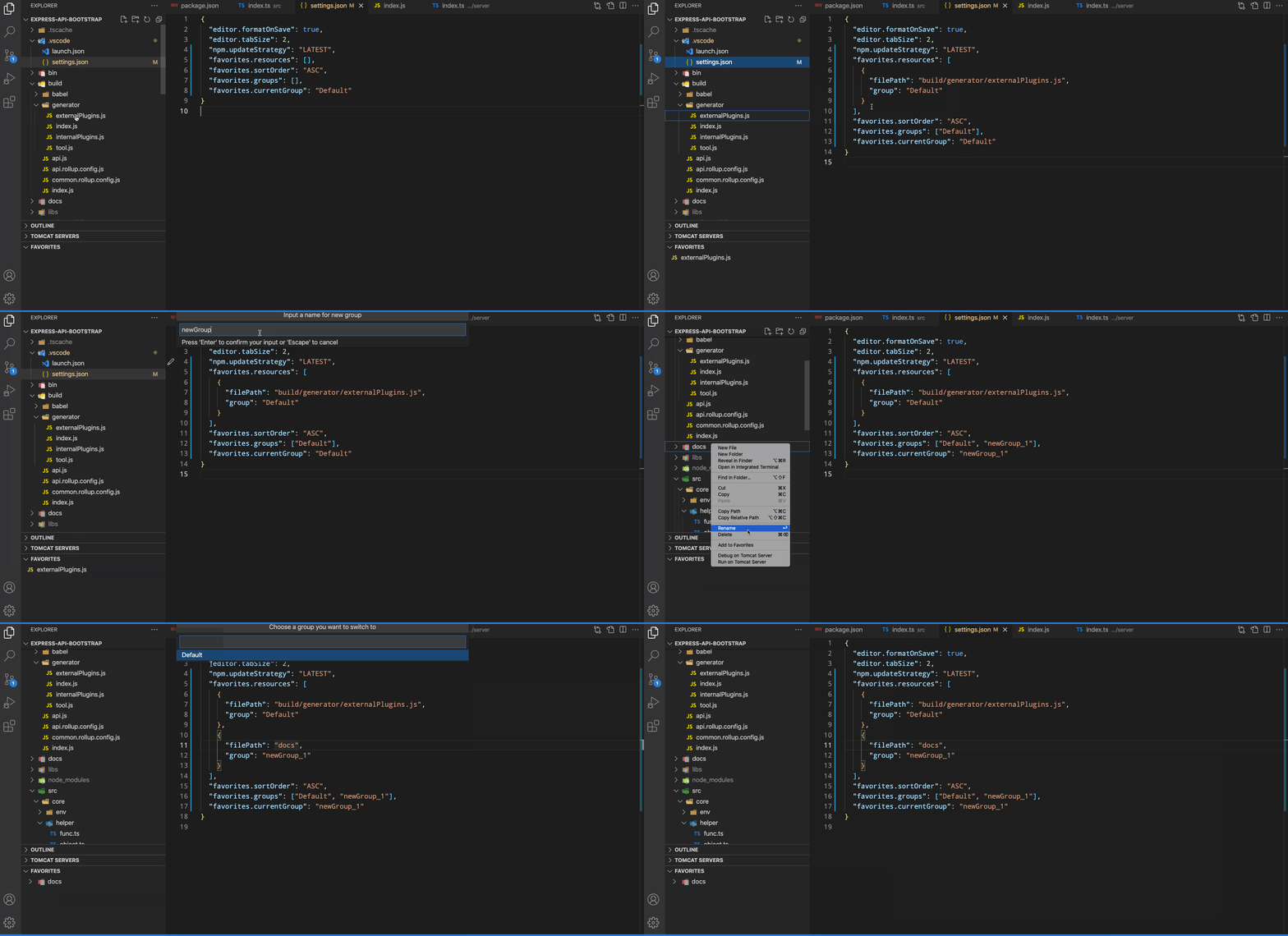
An Add to Favorites command in Explorer's context menu saves links to your favorite files or folders into your XYZ.code-workspace file if you are using one, else into the .vscode/settings.json file of your root folder.
Use the Toggle Favorite command from the Command Palette (cmd/ctrl + shift + p) to quickly add or remove the currently active file from your favorites.
Use the Toggle Folder of Active File command from the Command Palette (cmd/ctrl + shift + p) to quickly add or remove the folder containing the currently active file from your favorites.
You can reorder favorites within the favorites panel by dragging and dropping them to your desired position. The sort order will automatically switch to "MANUAL" when you start dragging.
You can also add files to your favorites by dragging them from:
- Editor tabs: Drag the tab of an open file directly into the favorites panel
- Explorer: Drag files or folders from the Explorer view into the favorites panel
Your favorites are listed in a separate view and can be quickly accessed from there.
{
    "favorites.resources": [], // resources path you prefer to mark
    "favorites.sortOrder": "ASC", // DESC, MANUAL
    "favorites.saveSeparated": false // whether to use an extra config file
    "favorites.groups": ["Default"], // the groups you have created
    "favorites.currentGroup": "Default" // determine the current using group
}
You normally don't need to modify this config manually. Use context menus instead.
-
Clone the repository:
git clone https://github.com/leftstick/vscode-favorites.git cd vscode-favorites -
Install dependencies:
pnpm install
-
Run development server:
pnpm run watch
-
Launch extension:
- Press
F5in VS Code - This will open a new VS Code window with the extension loaded
- Press
-
Build the extension:
pnpm run build
-
Run tests:
pnpm run test -
Package the extension:
pnpm run package
- Fork the repository
- Create a feature branch:
git checkout -b feature/your-feature-name
- Make your changes
- Run tests to ensure your changes don't break existing functionality
- Commit your changes with a descriptive commit message
- Push to your fork
- Create a pull request
- Follow TypeScript best practices
- Use
async/awaitfor asynchronous operations - Add appropriate error handling
- Write clear and concise comments
- Maintain consistent code formatting
- TypeScript: For type-safe code
- esbuild: For fast builds
- Mocha: For unit tests
- VS Code Test: For extension integration tests