


Automated workflow to parse Swiggy food delivery order emails and track expenses in Google Sheets using n8n workflow automation with AI-powered email parsing.
| Self-Hosted with Ollama | Cloud-Based with OpenAI/Anthropic |
|---|---|
 |
 |
| Privacy-focused local processing | Cloud-powered enhanced accuracy |
This repository contains n8n workflows that automatically extract order details from Swiggy email notifications and append them to a Google Sheet for personal finance tracking. The workflow leverages Large Language Models (LLMs) to intelligently parse unstructured email data into structured financial records.
- Automated email monitoring for Swiggy order confirmations
- AI-powered email parsing using LLM models (Ollama, OpenAI, or Anthropic)
- Structured data extraction with consistent JSON output
- Automatic Google Sheets integration for expense tracking
- Scheduled execution with customizable intervals
- Support for multiple Swiggy order types (Food Delivery, Dineout, Instamart)
Before setting up this workflow, ensure you have the following:
- n8n instance (self-hosted or cloud)
- Google account with Google Sheets API access
- Gmail account with Swiggy order emails
- One of the following LLM providers:
- Ollama (self-hosted, free)
- OpenAI API key
- Anthropic API key
The workflow consists of the following components:
- Schedule Trigger: Runs automatically at scheduled intervals (default: daily at 1:30 AM)
- Manual Trigger: Allows on-demand execution for testing
- Gmail Integration: Fetches recent Swiggy order emails
- AI Email Parser: Extracts order details using LLM
- Clean JSON Node: Normalizes AI output into consistent format
- Google Sheets Append: Writes parsed data to tracking spreadsheet
If you do not already have n8n installed, choose one of the following methods:
Option A: n8n Cloud (Recommended for beginners)
- Visit https://n8n.io and sign up for a cloud account
- Access your n8n instance through the web interface
Option B: Self-Hosted with Docker
docker run -it --rm \
  --name n8n \
  -p 5678:5678 \
  -v ~/.n8n:/home/node/.n8n \
  docker.n8n.io/n8nio/n8n
Option C: Self-Hosted with npm
npm install n8n -g
n8n start
Access n8n at http://localhost:5678
-
Create Google Cloud Project
- Navigate to Google Cloud Console
- Click "Create Project" and provide a project name
- Select the newly created project
-
Enable Google Sheets API
- In the Cloud Console sidebar, go to "APIs & Services" > "Library"
- Search for "Google Sheets API"
- Click "Enable"
-
Configure OAuth Consent Screen
- Navigate to "APIs & Services" > "OAuth consent screen"
- Select "External" as user type (unless using Google Workspace)
- Fill in required fields:
- App name
- User support email
- Developer contact email
- Click "Save and Continue"
-
Create OAuth 2.0 Credentials
- Go to "APIs & Services" > "Credentials"
- Click "Create Credentials" > "OAuth client ID"
- Select "Web application" as application type
- Add a name for your OAuth client
- In n8n, navigate to Credentials and start creating a "Google Sheets OAuth2 API" credential
- Copy the "OAuth Redirect URL" from n8n
- Paste this URL into "Authorized redirect URIs" in Google Cloud Console
- Click "Create"
- Copy the Client ID and Client Secret
- Paste these values into your n8n credential configuration
- Complete the OAuth flow by clicking "Connect" in n8n
Follow the same process as Google Sheets, but enable "Gmail API" instead:
- In Google Cloud Console, enable "Gmail API" from the Library
- Create OAuth credentials using the same project
- In n8n, create "Gmail OAuth2" credentials
- Copy the OAuth Redirect URL and add it to authorized redirect URIs
- Complete the authentication flow
Choose one of the following options based on your preference:
Option A: Ollama (Recommended for Self-Hosted, Privacy-Focused Setup)
-
Install Ollama
# Linux
curl -fsSL https://ollama.com/install.sh | sh

# macOS
brew install ollama

# Windows
# Download installer from https://ollama.com
-
Pull a Compatible Model
ollama pull gpt-oss:latest
# or use other models like llama2, mistral, etc.
ollama list  # Verify installation
-
Start Ollama Server
ollama serve # Server runs on http://localhost:11434 by default -
Configure Ollama Credentials in n8n
- In n8n, go to Credentials > Add Credential
- Search for "Ollama API"
- Base URL:
http://localhost:11434(or your Ollama server URL) - Save the credential
Option B: OpenAI
- Obtain API key from OpenAI Platform
- In n8n Credentials, create "OpenAI API" credential
- Enter your API key
- Save the credential
Option C: Anthropic
- Obtain API key from Anthropic Console
- In n8n Credentials, create "Anthropic API" credential
- Enter your API key
- Save the credential
-
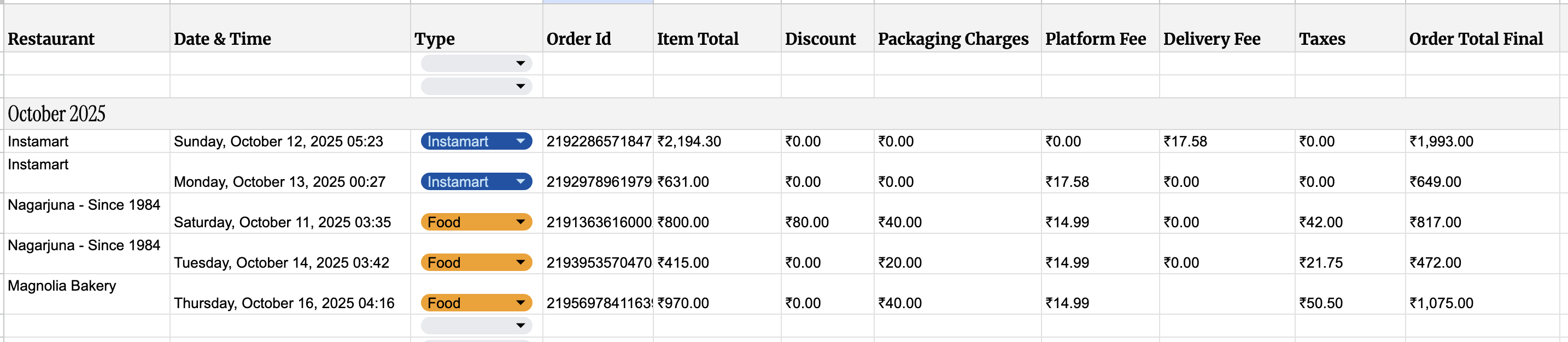
Create a new Google Sheet for tracking orders
-
Set up the following column headers in the first row:
- Restaurant
- Date & Time
- Type
- Order Id
- Item Total
- Discount
- Packaging Charges
- Platform Fee
- Delivery Fee
- Taxes
- Order Total Final
-
Copy the Google Sheet URL for workflow configuration
-
Download Workflow File
- Download either
Swiggy-Order-Email-to-Google-Sheets-Self-Hosted.json(for Ollama) orOpenAI-Swiggy-Order-Email-to-Google-Sheets.json(for OpenAI/Anthropic) from this repository
- Download either
-
Import into n8n
- In n8n, click the three dots menu (top right) > "Import from File"
- Select the downloaded JSON file
- The workflow will appear on your canvas
-
Configure Credentials
- Open each node that requires credentials (marked with warning icons)
- Select or create the appropriate credentials:
- Gmail OAuth2 (for Gmail nodes)
- Google Sheets OAuth2 (for Append row node)
- Ollama API / OpenAI API / Anthropic API (for LLM nodes)
-
Update Google Sheet Reference
- Open the "Append row in sheet" node
- Update the "Document ID" to your Google Sheet URL
- Select the appropriate sheet name (usually "Sheet1")
Modify the Gmail filter query if needed:
- Open the "Gmail - Get MessageIDs" node
- Default filter:
from:(noreply@swiggy.in) (subject:order OR subject:Instamart OR subject:gourmet) - Adjust the query to match your email requirements
- Modify the "limit" parameter to control how many recent emails to process
-
Manual Test
- Ensure the workflow is saved
- Click "Execute Workflow" button (or use Manual Trigger node)
- Verify that emails are fetched and data appears in Google Sheet
- Check for any errors in node execution
-
Activate Scheduled Execution
- Toggle the workflow to "Active" in the top right
- The Schedule Trigger will run automatically at 1:30 AM daily
- Monitor executions in the "Executions" panel
This workflow (Swiggy-Order-Email-to-Google-Sheets-Self-Hosted.json) uses a self-hosted Ollama LLM model for email parsing.
Key Nodes:
- Schedule Trigger: Executes daily at 1:30 AM (customizable)
- Manual Trigger: For testing and manual execution
- Gmail - Get MessageIDs: Fetches last 3 Swiggy order emails
- Get Whole Email: Retrieves full email content including HTML body
- AI Email Parser: Uses LangChain agent to extract structured data
- Ollama Chat Model: Local LLM for parsing (model:
gpt-oss:latest) - Structured Output Parser: Ensures consistent JSON format
- Clean JSON: JavaScript code to handle parsing edge cases
- Append row in sheet: Writes data to Google Sheets
Data Extraction Fields:
- Restaurant Name
- Order Date and Time
- Order Type (Food, Dineout, or Instamart)
- Order ID
- Item Total
- Discount
- Packaging Charges
- Platform Fee
- Delivery Fee
- Taxes
- Order Total Final
The OpenAI-Swiggy-Order-Email-to-Google-Sheets.json workflow provides the same functionality but uses cloud-based LLM providers.
Configuration Options:
- Uses OpenAI Chat Model (gpt-3.5-turbo) as primary LLM
- Anthropic Chat Model (Claude Haiku 4.5) available as alternative
- Structured Output Parser connected to ensure consistent JSON output
To Switch LLM Models:
- Open the "AI Email Parser" node
- Disconnect the current LLM connection
- Connect your preferred model node:
- OpenAI Chat Model
- Anthropic Chat Model
- Ollama Chat Model (if switching to self-hosted)
The Structured Output Parser ensures that the LLM returns data in a consistent format. It uses a JSON schema example:
[
  {
    "restaurantName": "MTR - Lalbagh Road",
    "date": "Saturday, October 11, 2025 12:15 PM",
    "type": "Food",
    "orderId": "219136361600127",
    "orderTotal": "420.00",
    "discount": "20.00",
    "packagingCharges": "15.00",
    "platformFee": "9.99",
    "deliveryFee": "0.00",
    "taxes": "21.00",
    "orderTotalFinal": "445.99"
  }
]
This schema guides the LLM to extract and format the data correctly from unstructured email content.
The Clean JSON node contains JavaScript code that handles various edge cases in AI-generated output:
Functionality:
- Parses potentially malformed JSON from LLM responses
- Handles escaped characters and embedded quotes
- Extracts JSON arrays from mixed text responses
- Flattens nested arrays
- Filters out empty or invalid entries
- Formats data for Google Sheets compatibility
This node is critical for ensuring reliable data flow even when the LLM output is not perfectly formatted.
To prevent duplicate order entries in your Google Sheet, you can set up an automated deduplication script that runs whenever data is added.
The n8n workflow may occasionally process the same email multiple times (e.g., during testing or if the workflow is re-executed). This script ensures that each order ID appears only once in your spreadsheet.
Step 1: Open Apps Script Editor
- Open your Google Sheet
- Click Extensions > Apps Script
- Delete any existing code in the editor
Step 2: Add the Deduplication Script
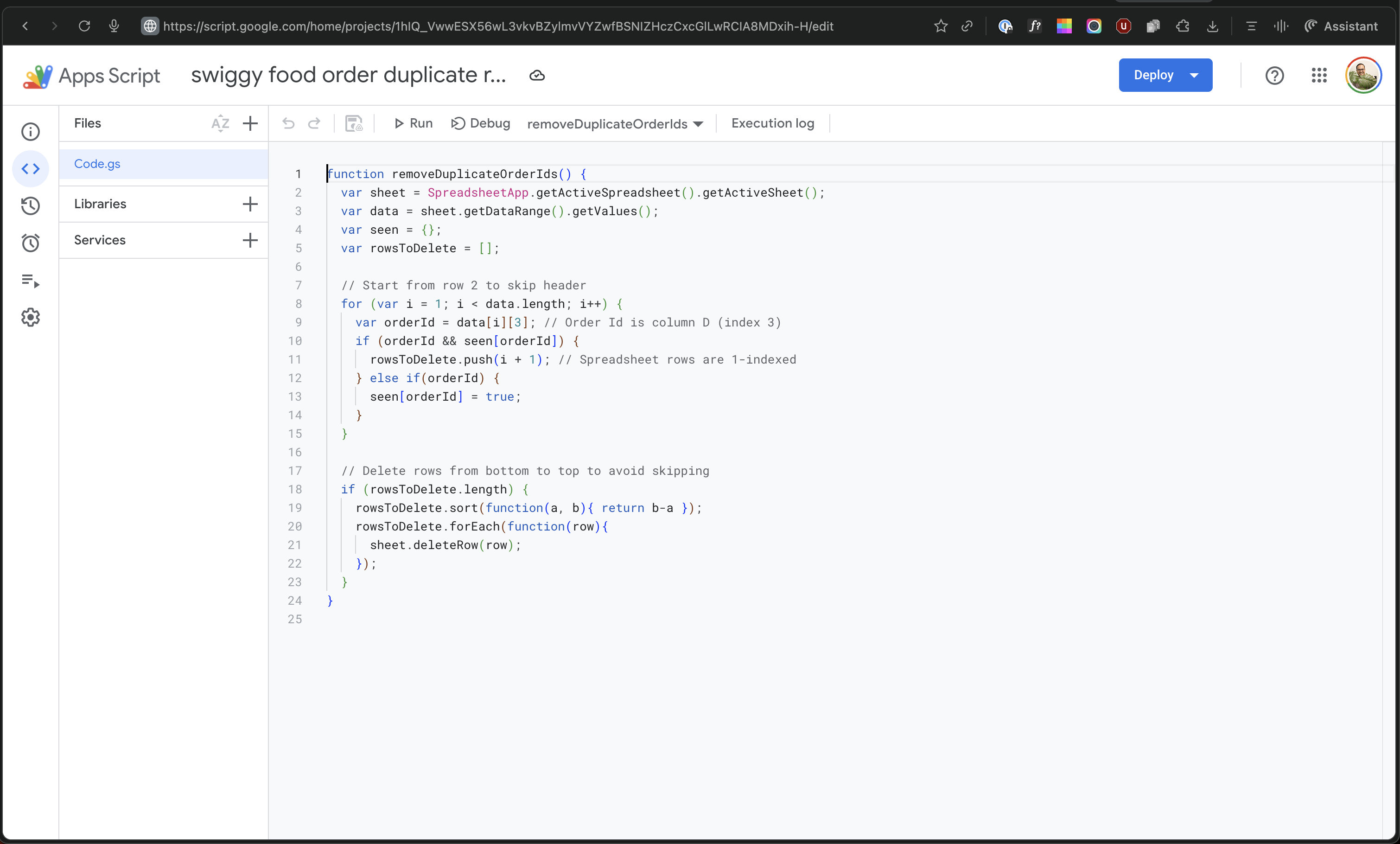
function removeDuplicateOrderIds() {
  var sheet = SpreadsheetApp.getActiveSpreadsheet().getActiveSheet();
  var data = sheet.getDataRange().getValues();
  var seen = {};
  var rowsToDelete = [];

  // Start from row 2 to skip header
  for (var i = 1; i < data.length; i++) {
    var orderId = data[i][1]; // Order Id is in column D (index 3)
    if (orderId && seen[orderId]) {
      rowsToDelete.push(i + 1); // Spreadsheet rows are 1-indexed
    } else if(orderId) {
      seen[orderId] = true;
    }
  }

  // Delete rows from bottom to top to avoid skipping
  if (rowsToDelete.length) {
    rowsToDelete.sort(function(a, b) { return b-a });
    rowsToDelete.forEach(function(row){
      sheet.deleteRow(row);
    });
  }
}
Step 3: Add the Trigger Configure the following settings:
- Choose which function to run:
removeDuplicateOrderIds - Choose which deployment should run:
Head - Select event source:
Time-driven - Select type of time based trigger:
Day timer - Select time of day: Choose your preferred time (e.g.,
2am to 3am,Midnight to 1am, etc.)
Step 4: Save and Authorise
- Click Save
- If prompted, click Review permissions
- Select your Google account
- Click Advanced > Go to [Your Project Name] (unsafe)
- Click Allow to grant necessary permissions
Never Share Credentials:
- The exported JSON files contain credential IDs but not the actual secrets
- Before sharing workflows, verify that no hardcoded API keys exist
- Use n8n's built-in credential management system exclusively
Environment Variables (Self-Hosted Only):
For enhanced security in self-hosted deployments, use environment variables:
# Set environment variables for n8n
export N8N_BASIC_AUTH_ACTIVE=true
export N8N_BASIC_AUTH_USER=your_username
export N8N_BASIC_AUTH_PASSWORD=your_secure_password
export N8N_SECURE_COOKIE=true
export N8N_BLOCK_ENV_ACCESS_IN_NODE=true
Google Sheet Security:
- Limit sharing permissions on your tracking spreadsheet
- Only grant access to necessary Google accounts
- Consider using a dedicated service account for API access
Credential Rotation:
- Periodically regenerate API keys and OAuth tokens
- Update credentials in n8n credential manager
- Revoke unused or old credentials from provider dashboards
Webhook Security:
- Use unique, non-guessable webhook URLs
- Implement IP whitelisting if possible
- Enable HTTPS for all webhook endpoints
To change when the workflow runs:
- Open the "Schedule Trigger" node
- Select "Custom (Cron)" as trigger interval
- Enter a cron expression:
- Every hour:
0 * * * * - Every 6 hours:
0 */6 * * * - Daily at 9 AM:
0 9 * * * - Weekly on Monday at 8 AM:
0 8 * * 1
- Every hour:
Use Crontab Guru to generate custom cron expressions.
Modify the Gmail filter in "Gmail - Get MessageIDs" node:
# Fetch all Swiggy emails
from:(noreply@swiggy.in)

# Fetch only food delivery orders
from:(noreply@swiggy.in) subject:order

# Fetch from specific date
from:(noreply@swiggy.in) after:2025/01/01

# Fetch unread emails only
from:(noreply@swiggy.in) is:unread
To change which data fields are extracted:
- Open the "AI Email Parser" node
- Update the prompt text to include new fields
- Open the "Structured Output Parser" node
- Update the JSON schema example with new field names
- Open the "Append row in sheet" node
- Add corresponding column mappings
This workflow can be adapted for other food delivery platforms:
- Update Gmail filter query to match the provider's email address
- Modify AI Email Parser prompt to match email format
- Adjust Structured Output Parser schema if field names differ
- Test thoroughly with sample emails
Issue: Workflow Not Triggering Automatically
- Verify workflow is set to "Active"
- Check Schedule Trigger configuration
- Review timezone settings in n8n settings
- For self-hosted: ensure n8n process is running continuously
Issue: Gmail Authentication Failed
- Re-authenticate Gmail OAuth2 credentials
- Verify Gmail API is enabled in Google Cloud Console
- Check OAuth redirect URL matches n8n configuration
- Ensure scopes include "gmail.readonly"
Issue: Google Sheets Write Failed
- Confirm Google Sheets API is enabled
- Verify OAuth2 credentials are valid
- Check that sheet ID and sheet name are correct
- Ensure column mappings match sheet headers
- Confirm Google account has edit permissions
Issue: LLM Not Parsing Data Correctly
- Verify LLM service is accessible (Ollama server running, API keys valid)
- Review AI Email Parser prompt for clarity
- Check Structured Output Parser schema matches expected format
- Examine raw email content for format changes
- Test with different LLM models (OpenAI may be more reliable than smaller local models)
Issue: Clean JSON Node Failing
- Review the JavaScript code for syntax errors
- Check execution logs for specific error messages
- Verify AI output contains valid JSON structure
- Test with manual data input to isolate parsing issues
Issue: Duplicate Entries in Google Sheet
- Implement deduplication logic using Order ID
- Consider adding a filter node to check for existing entries
- Adjust Gmail query to fetch only unread or recent emails
Issue: Ollama Connection Refused
- Verify Ollama server is running:
curl http://localhost:11434 - Check Ollama credential configuration in n8n
- Ensure firewall allows connections to Ollama port
- For Docker deployments: verify network configuration
Reduce API Costs:
- Limit the number of emails fetched per execution
- Use smaller, more efficient LLM models
- Implement caching for repeated queries
Improve Parsing Accuracy:
- Provide more detailed examples in Structured Output Parser
- Use higher-quality LLM models (GPT-4, Claude Opus)
- Implement validation logic in Clean JSON node
- Test prompt variations for better extraction
Speed Up Execution:
- Use Ollama for fastest local processing
- Reduce unnecessary node operations
- Optimize JavaScript code in Clean JSON node
The workflow supports connecting multiple LLM nodes simultaneously:
- Keep all three LLM model nodes in the workflow
- Connect only one to the AI Email Parser at a time
- Switch between models by reconnecting the desired node
- Compare results to determine the most accurate model for your use case
Add error handling to the workflow:
- Enable "Continue on Fail" in critical nodes
- Add an "If" node after AI Email Parser to check for valid output
- Route failed items to an error notification node (Email, Slack, etc.)
- Log errors to a separate Google Sheet for monitoring
For self-hosted instances, set timezone via environment variable:
export GENERIC_TIMEZONE="Asia/Kolkata"
export TZ="Asia/Kolkata"
For n8n Cloud:
- Navigate to Settings > General
- Select your timezone from the dropdown
- Save changes
Contributions are welcome to improve this workflow:
- Report issues or bugs via GitHub Issues
- Suggest enhancements or new features
- Submit pull requests with improvements
- Share variations for other food delivery services
This project is open source and available for personal and commercial use.
- n8n community for workflow automation platform
- Ollama project for local LLM hosting
- OpenAI and Anthropic for LLM APIs
- LangChain for agent framework
- n8n Documentation
- Ollama Documentation
- Google Sheets API Documentation
- Gmail API Documentation
- LangChain Documentation
For questions or support:
- Review the n8n community forum
- Check the n8n documentation
- Open an issue on this repository
- v1.0 - Initial release with Ollama and OpenAI support
- Self-hosted and cloud deployment options
- Automated scheduling and manual triggers
- Support for Food, Dineout, and Instamart orders