The movie of 80 ribosome along PC1
mov4.mp4
This repository contains the implementation of opus-deep structural disentanglement (DSD), which is developed by the research group of Prof. Jianpeng Ma at Fudan University. The publication of this method is available at https://www.nature.com/articles/s41592-023-02031-6. There is a program on codeocean https://codeocean.com/capsule/9350896/tree/v1 for testing its inference. A newer version with better reconstruction quality is available upon request. An exemplar movie of the mentioned new version is shown below:
mov1.mp4
This program is built upon a set of great works:
This project seeks to unravel how a latent space, encoding 3D structural information, can be learned by utilizing only 2D image supervisions which are aligned against a consensus reference model.
An informative latent space is pivotal as it simplifies data analysis by providing a structured and reduced-dimensional representation of the data.
Our approach strategically leverages the inevitable pose assignment errors introduced during consensus refinement, while concurrently mitigating their impact on the quality of 3D reconstructions. Although it might seem paradoxical to exploit errors while minimizing their effects, our method has proven effective in achieving this delicate balance.
The workflow of this method is demonstrated as follows:
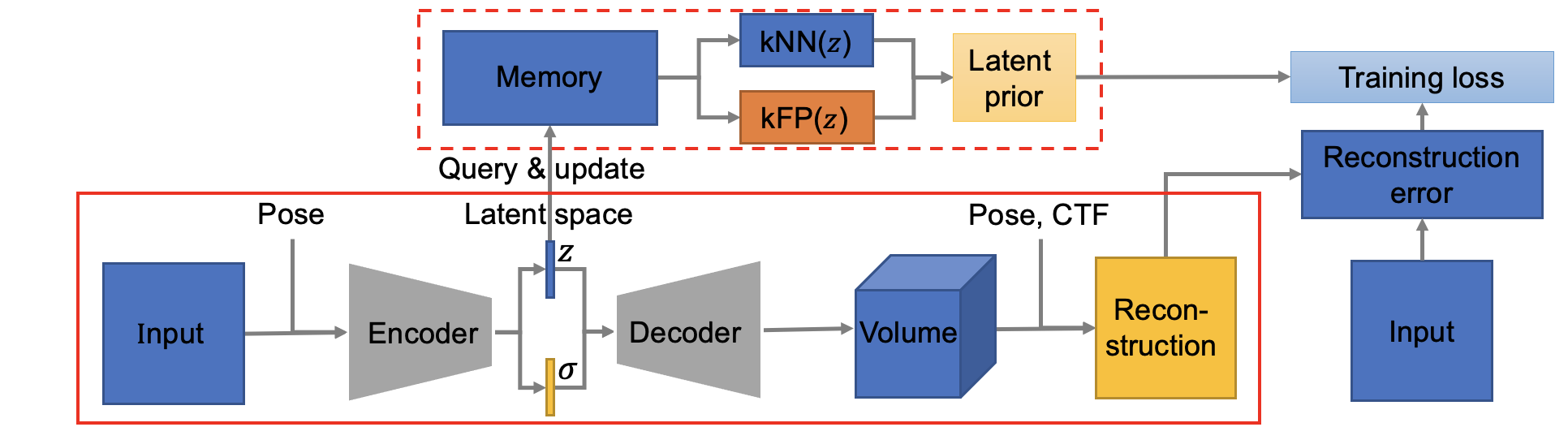
Note that all input and output of this method are in real space! (Fourier space is good, but how about real space!) The architecture of encoder is (Encoder class in cryodrgn/models.py):

The architecture of decoder is (ConvTemplate class in cryodrgn/models.py. In this version, the default size of output volume is set to 192^3, I downsampled the intermediate activations to save some gpu memories. You can tune it as you wish, happy training!):

The weight file can be downloaded from https://www.icloud.com/iclouddrive/0fab8AGmWkNjCsxVpasi-XsGg#weights.
The other pkls for visualzing are deposited at https://drive.google.com/drive/folders/1D0kIP3kDhlhRx12jVUsZUObfHxsUn6NX?usp=share_link.
These files are from the epoch 16 and trained with output volume of size 192. z.16.pkl stores the latent encodings for all particles. ribo_pose_euler.pkl is the pose parameter file. Our program will read configurations from config.pkl. Put them in the same folder, you can then follow the analyze result section to visualize the latent space.
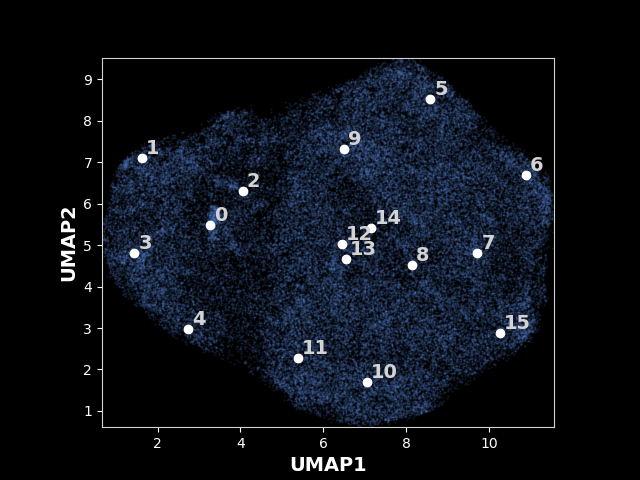
An exmaple UMAP of latent space for 80S ribosome:
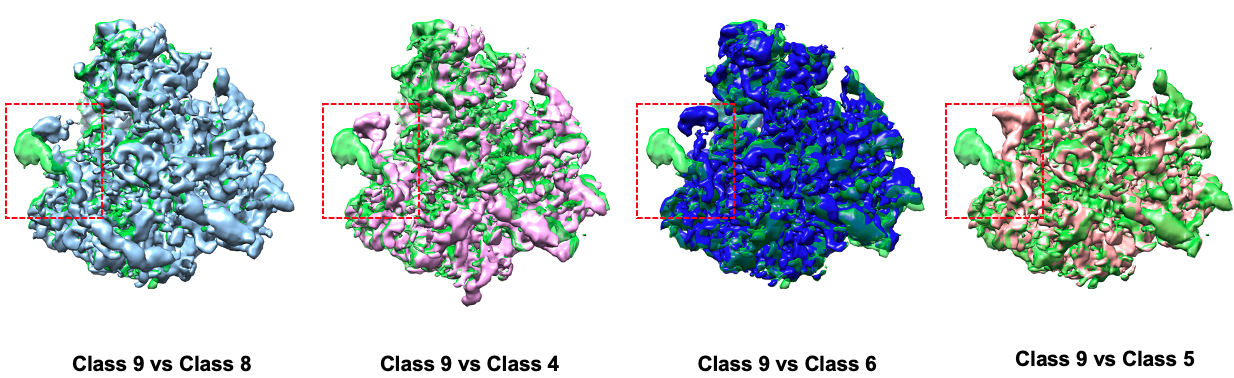
Comparison between some states:
A more colorful umap is shown above. The particles are colored according to their projection classes, note that the clusters often show certain dominant colors, which is due to structural variations in images are accounted in the consensus refinement by distorting the pose paramters of each particle, like fitting a longer rod into a small gap by tilting the rod!
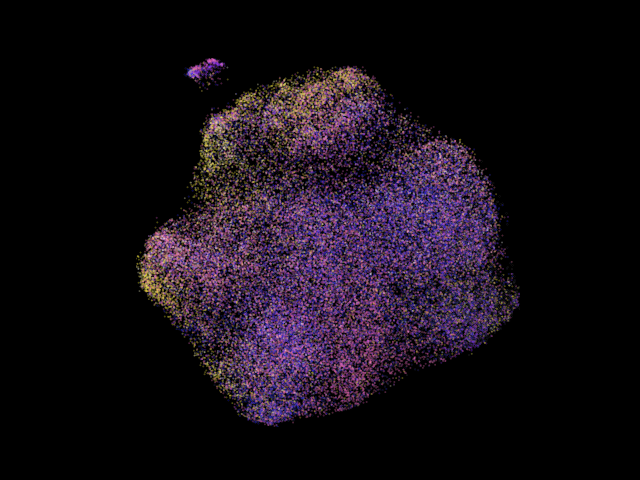
Data source: EMPIAR-10002. The particles are colored according to their pose parameters in this image.
UMAP and some selected classes for the spliceosome complex

The movie of the movement in spliceosome along PC1
mov1.mp4
After cloning the repository, to run this program, you need to have an environment with pytorch and a machine with GPUs. The recommended configuration is a machine with 4 V100 GPUs. You can create the conda environment for DSD using one of the environment files in the folder by executing
conda env create --name dsd -f environmentcu11torch11.yml
This environment primarily contains cuda 11.3 and pytorch 1.11.0. To create an environment with cuda 11.3 and pytorch 1.10.1, you can choose environmentcu11.yml. Lastly, environment.yml contains cuda 10.2 and pytorch 1.11.0. On V100 GPU, OPUS-DSD with cuda 11.3 is 20% faster than OPUS-DSD with cuda 10.2. However, it's worth noting that OPUS-DSD has not been tested on Pytorch version higher than 1.11.0. We recommend using pytorch version 1.10.1 or 1.11.0. After the environment is sucessfully created, you can then activate it and execute our program within this environement.
conda activate dsd
You can then install OPUS-DSD by changing to the directory with cloned repository, and execute
pip install -e .
OPUS-DSD can be kept up to date by
git pull
The inference pipeline of our program can run on any GPU which supports cuda 10.2 or 11.3 and is fast to generate a 3D volume. However, the training of our program takes larger amount memory, we recommend using V100 GPUs at least.
This program is developed based on cryoDRGN and adheres to a similar data preparation process.
Data Preparation Guidelines:
-
Cryo-EM Dataset: Ensure that the cryo-EM dataset is stored in the MRCS stack file format. A good dataset for tutorial is the splicesome which is available at https://empiar.pdbj.org/entry/10180/ (It contains the consensus refinement result.)
-
Consensus Refinement Result: The program requires a consensus refinement result, which should not apply any symmetry and must be stored as a Relion STAR file. Other 3D reconstruction results such as 3D classification, as long as they determine the pose parameters of images, can also be supplied as input.
Usage Example:
In overall, the commands in OPUS-DSD can be invoked by calling
dsd commandx ...
More information about each argument of the command can be displayed using
dsd commandx -h
OPUS-DSD follows cryoDRGN's input formats. The pose and ctf parameters for image stack are stored as the python pickle files, aka pkl. Suppose the refinement result is stored as consensus_data.star and the format of the Relion STAR file is below version 3.0,
and the consensus_data.star is located at /work/ directory, you can convert STAR to the pose pkl file inside the opusDSD source folder by executing the command below:
dsd parse_pose_star /work/consensus_data.star -D 320 --Apix 1.699 -o sp-pose-euler.pkl
where
| argument | explanation |
|---|---|
| -D | the dimension of the particle image in your dataset |
| --Apix | is the angstrom per pixel of you dataset |
| -o | followed by the filename of pose parameter used by our program |
| --relion31 | include this argument if you are using star file from relion with version higher than 3.0 |
Next, you can convert STAR to the ctf pkl file by executing:
dsd parse_ctf_star /work/consensus_data.star -D 320 --Apix 1.699 -o sp-ctf.pkl
For the RELION STAR file with version hgiher than 3.0, you should add --relion31 to the command!
Simple Data Preparation Using dsdsh prepare:
There is a command dsdsh prepare which combine both process. Under the hood, dsdsh prepare points to the prepare.sh inside analysis_scripts. Suppose the version of star file is 3.1, the above process can be simplified as,
dsdsh prepare /work/consensus_data.star 320 1.699 --relion31
                $1                      $2    $3    $4
- $1 specifies the path of the starfile,
- $2 specifies the dimension of image
- $3 specifies the angstrom per pixel of image
- $4 indicates the version of starfile, only include --relion31 if the file version is higher than 3.0
The pose pkl can be found as /work/consensus_data_pose_euler.pkl, and the ctf pkl can be found as /work/consensus_data_ctf.pkl
Suppose you download the spliceosome dataset. You can prepare a particle stack named all.mrcs using
relion_stack_create --i consensus_data.star --o all --one_by_one
Sometimes after running some protocols in Relion using all.star, Relion might sort the order of images in the corresponding output starfile. You should make sure that the output starfile and the input all.star have the same order of images, thus the output starfile have the correct parameters for the images in all.mrcs!
Finally, you should create a mask using the consensus model and RELION through postprocess. The detailed procedure for mask creation can be found in https://relion.readthedocs.io/en/release-3.1/SPA_tutorial/Mask.html. The spliceosome dataset on empiar comes with a global_mask.mrc file. Suppose the filename of mask is mask.mrc, move it to the program directory for simplicity.
After executing all these steps, you have all pkls and files required for running opus-DSD in the program directory ( You can specify any directories you like in the command arguments ).
When the inputs are available, you can train the vae for structural disentanglement using
dsd train_cv /work/all.mrcs --ctf ./sp-ctf.pkl --poses ./sp-pose-euler.pkl --lazy-single --pe-type vanilla --encode-mode grad --template-type conv -n 20 -b 12 --zdim 12 --lr 1.e-4 --num-gpus 4 --multigpu --beta-control 2. --beta cos -o /work/sp -r ./mask.mrc --downfrac 0.75 --valfrac 0.25 --lamb 2. --split sp-split.pkl --bfactor 4. --templateres 224
The argument following train_cv specifies the image stack.
The three arguments --pe-type vanilla --encode-mode grad --template-type conv ensure OPUS-DSD is selected! Our program set the default values of those arguments to the values shown in above command.
The functionality of each argument is explained in the table:
| argument | explanation |
|---|---|
| --ctf | ctf parameters of the image stack |
| --poses | pose parameters of the image stack |
| -n | the number of training epoches, each training epoch loops through all images in the training set |
| -b | the number of images for each batch on each gpu, depends on the size of available gpu memory |
| --zdim | the dimension of latent encodings, increase the zdim will improve the fitting capacity of neural network, but may risk of overfitting |
| --lr | the initial learning rate for adam optimizer, 1.e-4 should work fine. |
| --num-gpus | the number of gpus used for training, note that the total number of images in the total batch will be n*num-gpus |
| --multigpu | toggle on the data parallel version |
| --beta-control | the restraint strength of the beta-vae prior, the larger the argument, the stronger the restraint. The scale of beta-control should be propotional to the SNR of dataset. Suitable beta-control might help disentanglement by increasing the magnitude of latent encodings and the sparsity of latent encodings, for more details, check out beta vae paper. In our implementation, we adjust the scale of beta-control automatically based on SNR estimation, possible ranges of this argument are [0.5-4.]. You can use larger beta-control for dataset with higher SNR |
| --beta | the schedule for restraint stengths, cos implements the cyclic annealing schedule and is the default option |
| -o | the directory name for storing results, such as model weights, latent encodings |
| -r | the solvent mask created from consensus model, our program will focus on fitting the contents inside the mask (more specifically, the 2D projection of a 3D mask). Since the majority part of image doesn't contain electron density, using the original image size is wasteful, by specifying a mask, our program will automatically determine a suitable crop rate to keep only the region with densities. |
| --downfrac | the downsampling fraction of input image, the input to network will be downsampled to size of D*downfrac, where D is the original size of image. You can set it according to resolution of consensus model and the templateres you set. |
| --lamb | the restraint strength of structural disentanglement prior proposed in DSD, set it according to the SNR of your dataset, for dataset with high SNR such as ribosome, splicesome, you can set it to 1. or higher, for dataset with lower SNR, consider lowering it. Possible ranges are [0.1, 3.]. If you find the UMAP of embeedings is exaggeratedly stretched into a ribbon, then the lamb you used during training is too high! |
| --split | the filename for storing the train-validation split of image stack |
| --valfrac | the fraction of images in the validation set, default is 0.1 |
| --bfactor | will apply exp(-bfactor/4 * s^2 * 4*pi^2) decaying to the FT of reconstruction, s is the magnitude of frequency, increase it leads to sharper reconstruction, but takes longer to reveal the part of model with weak density since it actually dampens learning rate, possible ranges are [3, 8]. Consider using higher values for more dynamic structures. We will decay the bfactor slightly in every epoch. This is equivalent to learning rate warming up. |
| --templateres | the size of output volume of our convolutional network, it will be further resampled by spatial transformer before projecting to 2D images. The default value is 192. You may keep it around D*downfrac/0.75, which is larger than the input size. This corresponds to downsampling from the output volume of our network. You can tweak it to other resolutions, larger resolutions can generate sharper density maps, choices are Nx16, where N is integer between 8 and 16 |
| --plot | you can also specify this argument if you want to monitor how the reconstruction progress, our program will display the 2D reconstructions and experimental images after 8 times logging intervals. Namely, you switch to interative mode by including this. The interative mode should be run using command python -m cryodrgn.commands.train_cv |
| --tmp-prefix | the prefix of intermediate reconstructions, default value is tmp. OPUS-DSD will output temporary reconstructions to the root directory of this program when training, whose names are $tmp-prefix.mrc |
| --notinmem | include this arguement to let OPUS-DSD reading image stacks from hard disk during training, this is helpful when a huge dataset cannot fit in the memory |
The plot mode will display the following images:

Each row shows a selected image and its reconstruction from a batch. In the first row, the first image is the experimental image supplemented to encoder, the second image is a 2D reconstruction blurred by the corresponding CTF, the third image is the correpsonding experimental image after 2D masking.
You can use nohup to let the above command execute in background and use redirections like 1>log 2>err to redirect ouput and error messages to the corresponding files.
Happy Training! Open an issue when running into any troubles.
To restart execution from a checkpoint, you can use
dsd train_cv /work/all.mrcs --ctf ./sp-ctf.pkl --poses ./sp-pose-euler.pkl --lazy-single -n 20 --pe-type vanilla --encode-mode grad --template-type conv -b 12 --zdim 12 --lr 1.e-4 --num-gpus 4 --multigpu --beta-control 2. --beta cos -o /work/sp -r ./mask.mrc --downfrac 0.75 --lamb 2. --valfrac 0.25 --load /work/sp/weights.0.pkl --latents /work/sp/z.0.pkl --split sp-split.pkl --bfactor 4. --templateres 224
| argument | explanation |
|---|---|
| --load | the weight checkpoint from the restarting epoch |
| --latents | the latent encodings from the restarting epoch |
both are in the output directory
During training, opus-DSD will output temporary volumes called tmp*.mrc (or the prefix you specified), you can check the intermediate results by viewing them in Chimera. Opus-DSD uses 3D volume as intermediate representation, so it requires larger amount of memory, v100 gpus will be sufficient for its training. Its training speed is slower, which requires 2 hours on 4 v100 gpus to finish one epoch on dataset with 20k images. By default, opus-DSD reads all images into memory before training, so it may require some more host memories To disable this behavior, you can include --notinmem into the training command.
You can use the analysis scripts in opusDSD/analysis_scripts to visualizing the learned latent space! The analysis procedure is detailed as following.
The analysis scripts can be invoked by calling command like
dsdsh commandx ...
To access detailed usage information for each command, execute the following:
dsdsh commandx -h
The first step is to sample the latent space using kmeans and PCA algorithms. Suppose the training results are in /work/sp,
dsdsh analyze /work/sp 16 4 16
                $1    $2 $3 $4
- $1 is the output directory used in training, which stores
weights.*.pkl, z.*.pkl, config.pkl - $2 is the epoch number you would like to analyze,
- $3 is the number of PCs you would like to sample for traversal
- $4 is the number of clusters for kmeans clustering.
The analysis result will be stored in /work/sp/analyze.16, i.e., the output directory plus the epoch number you analyzed, using the above command. You can find the UMAP with the labeled kmeans centers in /work/sp/analyze.16/kmeans16/umap.png and the umap with particles colored by their projection parameter in /work/sp/analyze.16/umap.png .
After executing the above command once, you may skip the lengthy umap embedding laterly by appending --skip-umap to the command in analyze.sh. Our analysis script will read the pickled umap embeddings directly.
You can either generate the volume which corresponds to KMeans cluster centroid or traverses the principal component using, (you can check the content of script first, there are two commands, one is used to evaluate volume at kmeans center, another one is for PC traversal, just choose one according to your use case)
dsdsh eval_vol /work/sp 16 kmeans 16 2.2
                 $1     $2   $3   $4  $5
- $1 is the output directory used in training, which stores
weights.*.pkl, z.*.pkl, config.pkland the clustering result - $2 is the epoch number you just analyzed
- $3 specifies the kind of analysis result where volumes are generated, i.e., kmeans clusters or principal components, use
kmeansfor kmeans clustering, orpcfor principal components - $4 is the number of kmeans clusters (or principal component) you used in analysis
- $5 is the apix of the generated volumes, you can specify a target value
change to directory /work/sp/analyze.16/kmeans16 to checkout the reference*.mrc, which are the reconstructions
correspond to the cluster centroids.
You can use
dsdsh eval_vol /work/sp 16 pc 1 2.2
                $1      $2 $3 $4 $5
to generate volumes along pc1. You can check volumes in /work/sp/analyze.16/pc1. You can make a movie using chimerax's vseries feature.
PCs are great for visualizing the main motions and compositional changes of marcomolecules, while KMeans reveals representative conformations in higher qualities.
Finally, you can also retrieve the star files for images in each kmeans cluster using
dsdsh parse_pose /work/consensus_data.star 320 1.699 /work/sp 16 16 --relion31
                                $1           $2  $3    $4     $5 $6  $7
- $1 is the star file of all images
- $2 is the dimension of image
- $3 is apix value of image
- $4 is the output directory used in training
- $5 is the epoch number you just analyzed
- $6 is the number of kmeans clusters you used in analysis
- $7 indicates the version of starfile, only include this when the version of starfile is higher than 3.0
change to directory /work/sp/analyze.16/kmeans16 to checkout the starfile for images in each cluster.